Assign a reservation to a table. The picker shows who already has each table, so you don't double-book it.
Web
Open the sidebar and click Reservations. Use List or Map at the top.
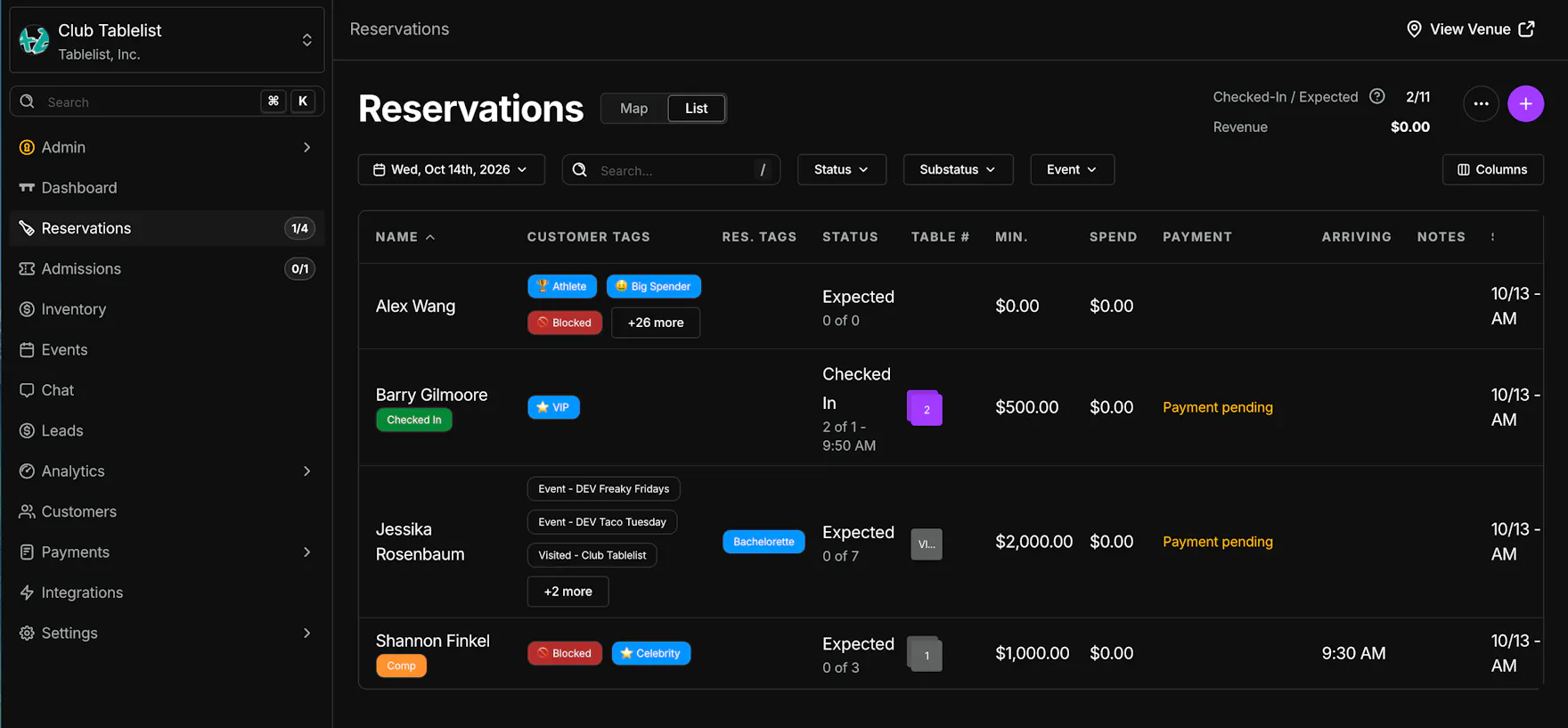
In List, the Table # column shows the assigned table.
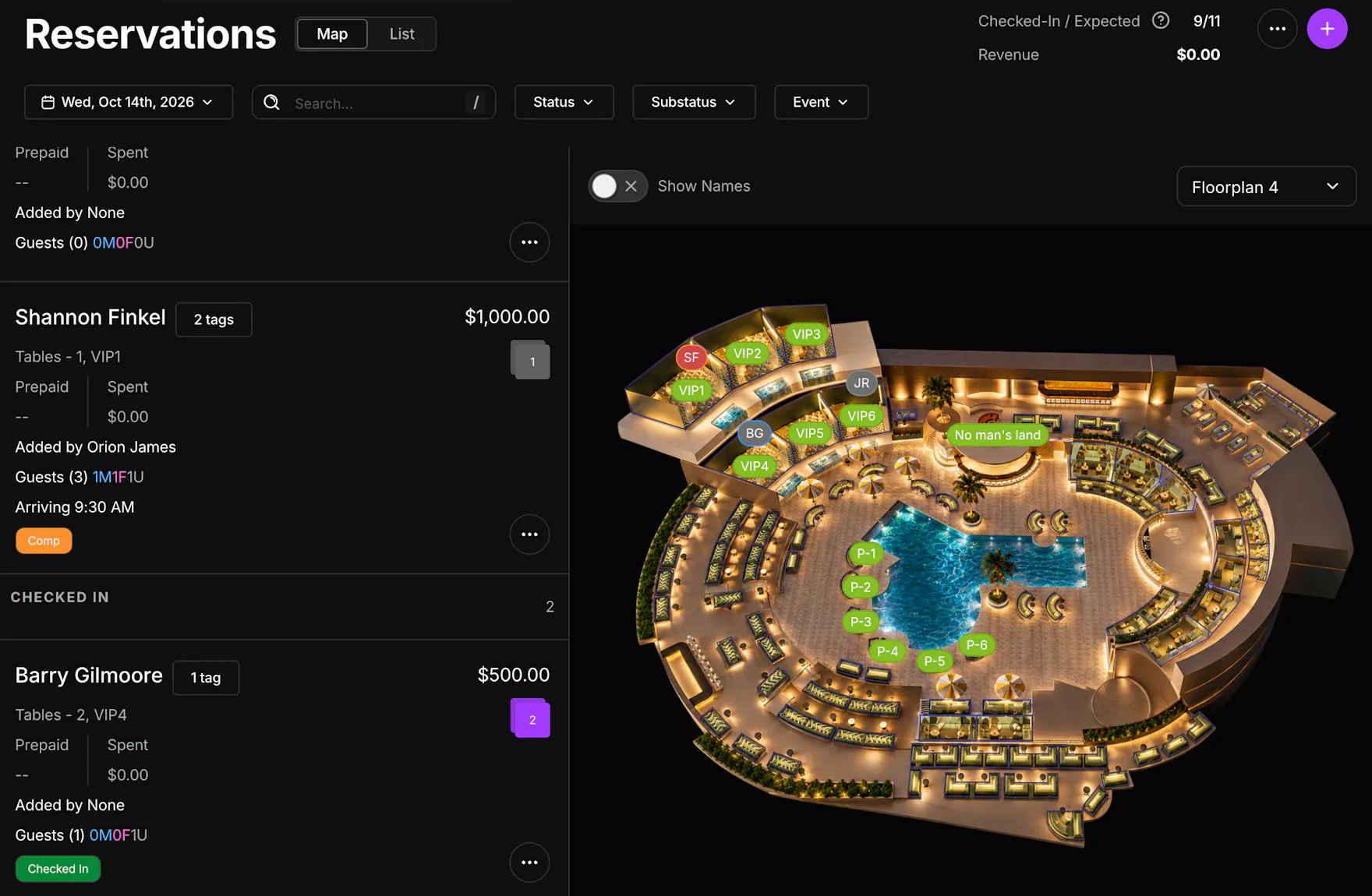
Map shows the floorplan next to the reservation list. Turn on Show Names to label the tables, and pick the floorplan on the right. Each reservation on the left lists its tables.
Open a reservation, or click + for a New Reservation. Under Reservation, open Location.
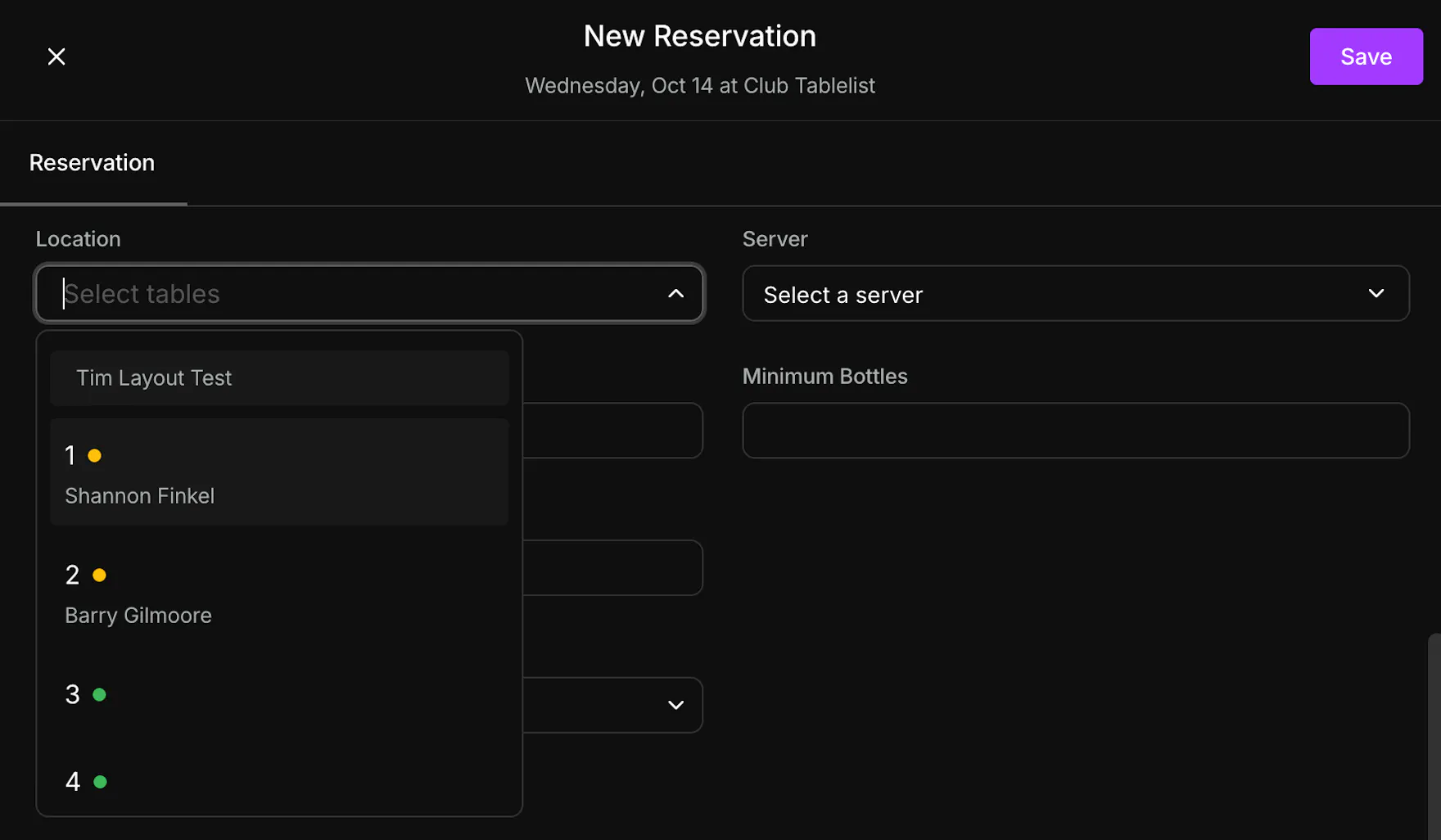
Tables are grouped by layout. A green dot means the table is open. A yellow dot means it's reserved, and the guest's name is under the table. A red dot means the table is closed. Pick the tables, then click Save.
Mobile
Open the Reservations tab and stay on List.
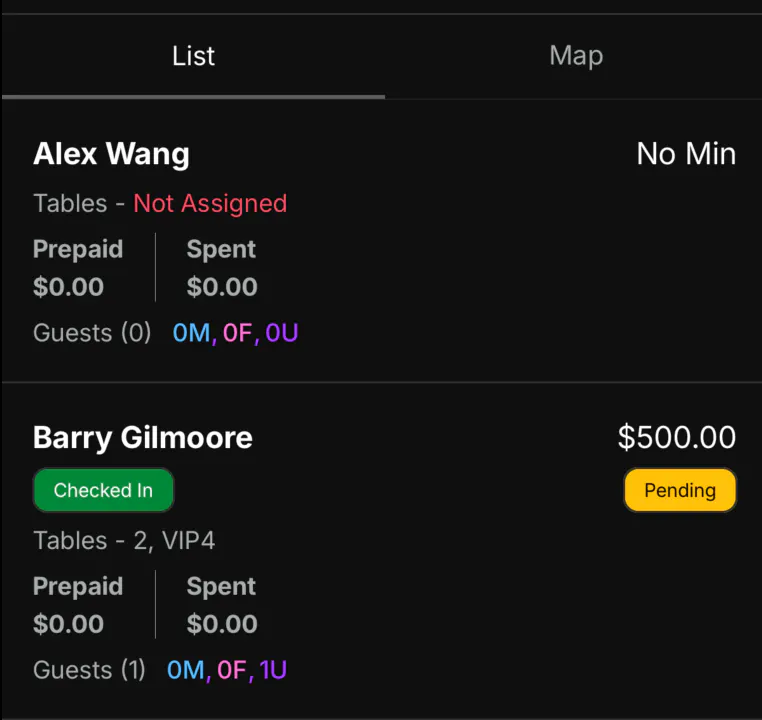
A reservation with no table says Tables - Not Assigned in red. An assigned reservation lists the table names, such as Tables - 2, VIP4.
Open the reservation and tap Location. The screen is titled Table Location.
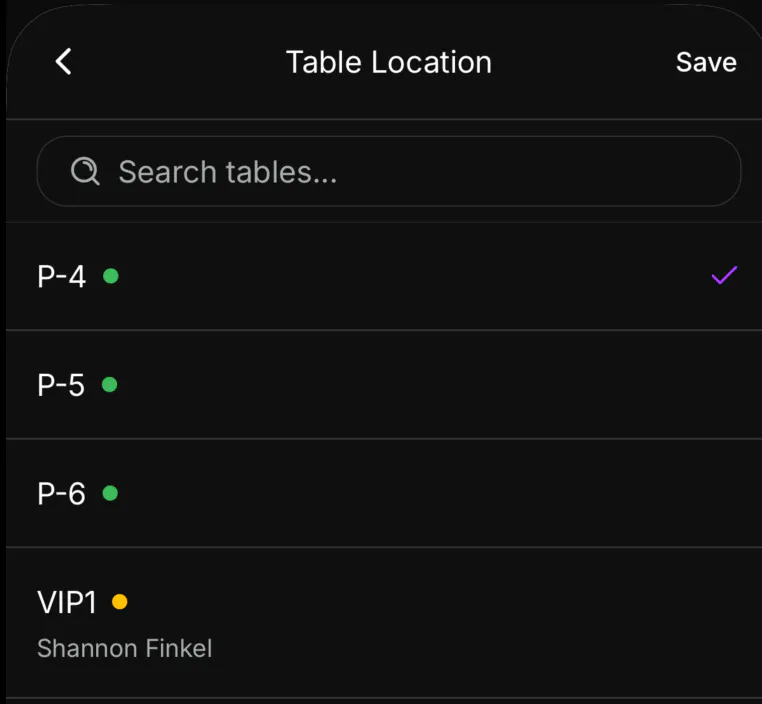
Search, then tap a table. A checkmark means it's selected. A green dot means the table is open. A yellow dot means it's reserved, and the guest's name is under the table. Tap Save.
Tap Assign from Map to pick tables on the floorplan instead.