Use payment links to request deposits, remaining balances, pre-payments, or card authorizations without manual forms.
Web
For reservations not yet in the system, first add a reservation.
Open the reservation and:
- Go to the Payment tab
- Under Payment Links, click Request Payment +
- Choose a Payment Type, set the Amount, and review Name and Description
- Click Save
- Open the ⋯ menu → Email link or Text link to send it (or copy the Payment Link URL)
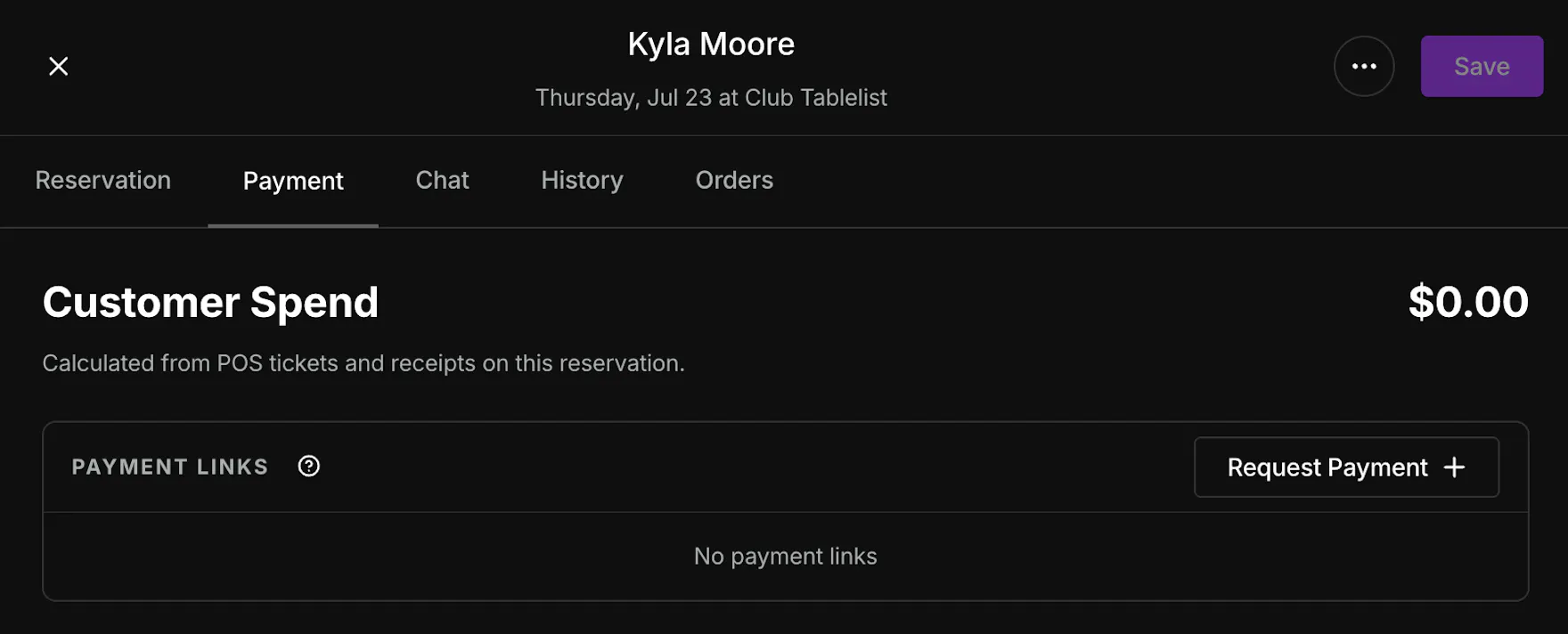
The Payment tab also shows Customer Spend (from POS tickets and receipts on this reservation) above your payment links.
Payment type and buyer total
Pick how the guest pays:
- Balance Due — Customer pays what's still owed after a prior payment. Shown on create when this reservation already has a payment link, something has been paid, and remaining owed is greater than $0. It's selected by default when those conditions match.
- Prepaid Full — Customer pays the full amount upfront
- Prepaid Deposit — Customer pays a deposit upfront. Taxes and fees are not charged on the deposit; they're added to the remaining balance.
- Authorization — Customer is not charged upfront, but must provide a valid credit card
You can't create a new link of a different type while another payment link is still Payment pending. After a deposit (or other prepaid link) is paid, you can send Balance Due.
Buyer total at the top of Request payment shows what the guest will pay on this link, including subtotal, tax & service charge, custom fees, and processing fee when those apply.
Balance Due
Balance Due collects the rest of the current table minimum, including tax and fees that weren't charged on a prior deposit.
When it's selected:
- Subtext shows Buyer Total (full table quote without processing), Amount Paid, and Balance Due
- Amount defaults to the remaining balance (tax and fees included, processing not included)
- Description uses
Venue: Package - remaining balance of $Xand does not append+ taxes and/or fees - The deposit-only note about taxes not charged on the deposit does not appear
Why doesn't Buyer total match Balance Due?
Balance Due is what's still owed before processing. Buyer total at the top is what the guest pays on this link — it adds the processing fee. Same remaining balance; processing is the difference.
If you change Amount away from that remaining balance, the link uses normal Prepaid Full math on the amount you typed.
Receipts show as Balance Due. Checkout still charges like prepaid full.
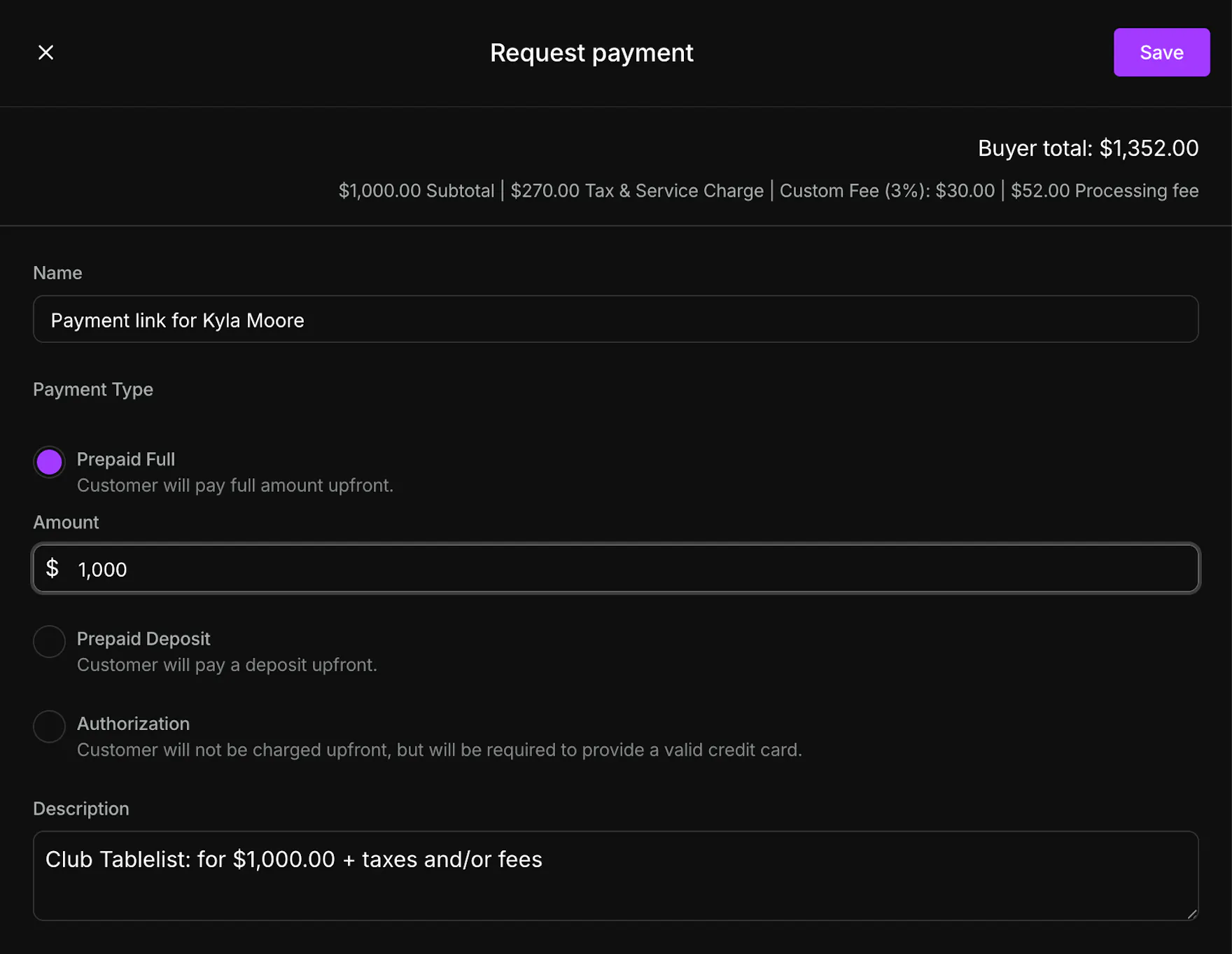
Default description
Description is filled in for you when you open Request Payment. It updates as you change payment type, amount, tax, service charge, or fees — until you edit the field yourself.
Format:
Venue: Package - [payment type] for $amount
Examples:
- Full payment:
Marquee: VIP Bottle - for $1,500.00 - Deposit:
Marquee: VIP Bottle - Deposit for $100.00 - Balance Due:
Marquee: VIP Bottle - remaining balance of $1,850.00 - Authorization:
Marquee: VIP Bottle - Authorization for $0.00
If tax, service charge, or fees are on the link, TablelistPro appends + taxes and/or fees (for example, Club Tablelist: for $1,000.00 + taxes and/or fees). Balance Due and Prepaid Deposit skip that suffix — remaining balance already includes tax and fees, and deposits don't charge them.
If the reservation has no package name, that part is skipped (for example, Marquee: Deposit for $100.00).
Edit the description anytime before you save — once you change it, auto-updates stop so your copy stays put.
After you save
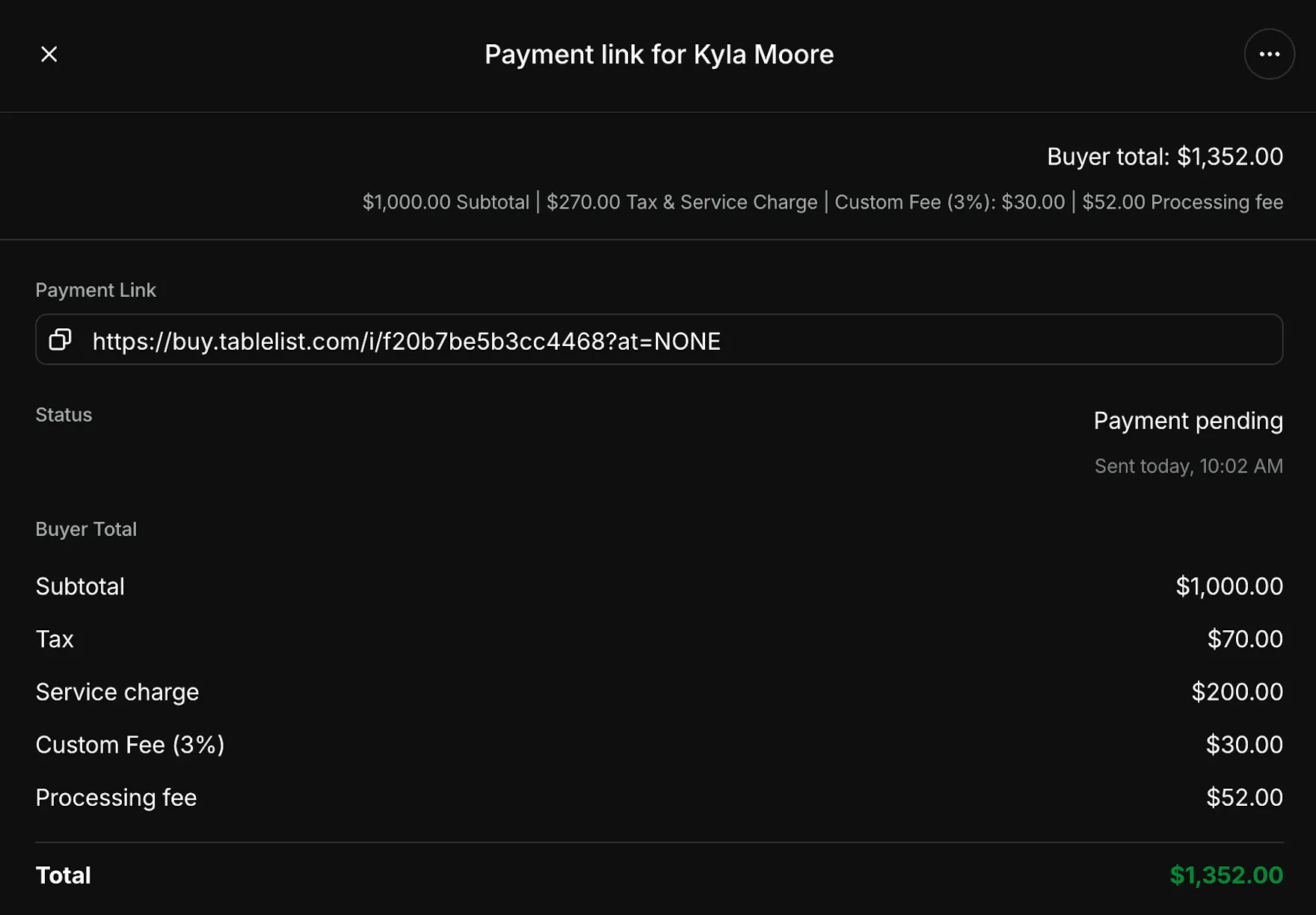
You'll land on Payment link details:
- Payment Link — Copyable URL for the guest checkout page
- Status — Starts as Payment pending, with when it was sent
- Buyer total breakdown — Subtotal, tax, service charge, custom fees, processing fee, and total
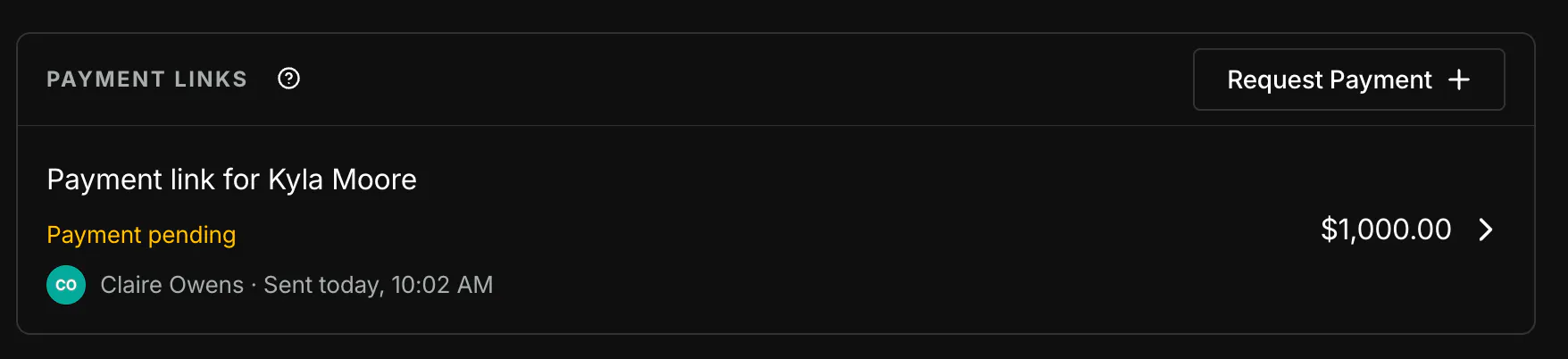
Back on the Payment tab, each link in Payment Links shows the name, status (for example Payment pending), amount, who sent it, and when.
Payments also appear in the Reservations payment column. To see all pending and completed payments across your organization, open Payments in the sidebar.
From Leads, you can also approve first, then request payment from the Payment tab.
To cancel a payment link: open it from Payment Links, click the ⋯ menu → Cancel, then confirm.
Mobile
For reservations not yet in the system, first add a reservation.
Open the reservation, tap ⋯, then Request Payment.
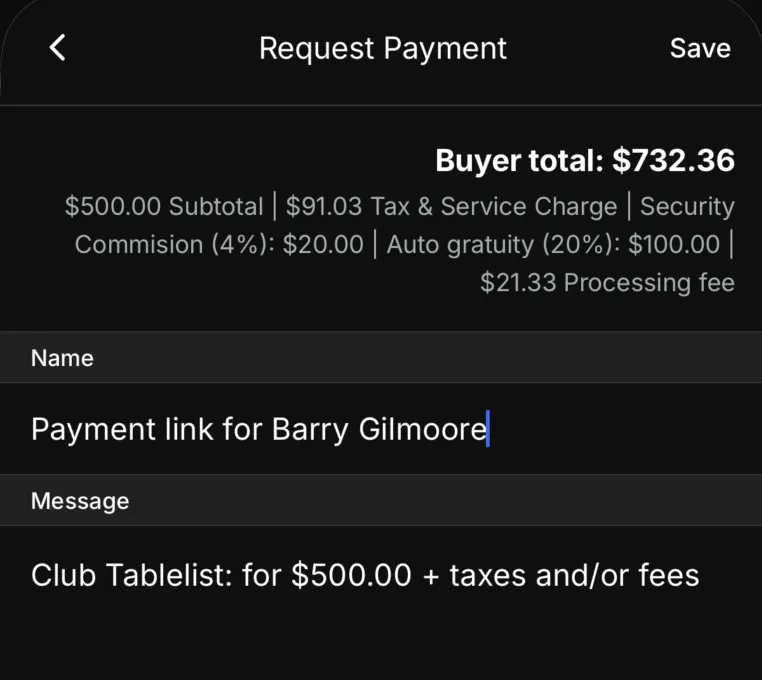
Buyer total at the top is what the guest pays on this link, including tax, fees, and the processing fee. Name and Message are filled in. Edit them, pick a Payment Type and amount, then tap Save.
Balance Due shows up when this reservation already has a paid link and money is still owed.
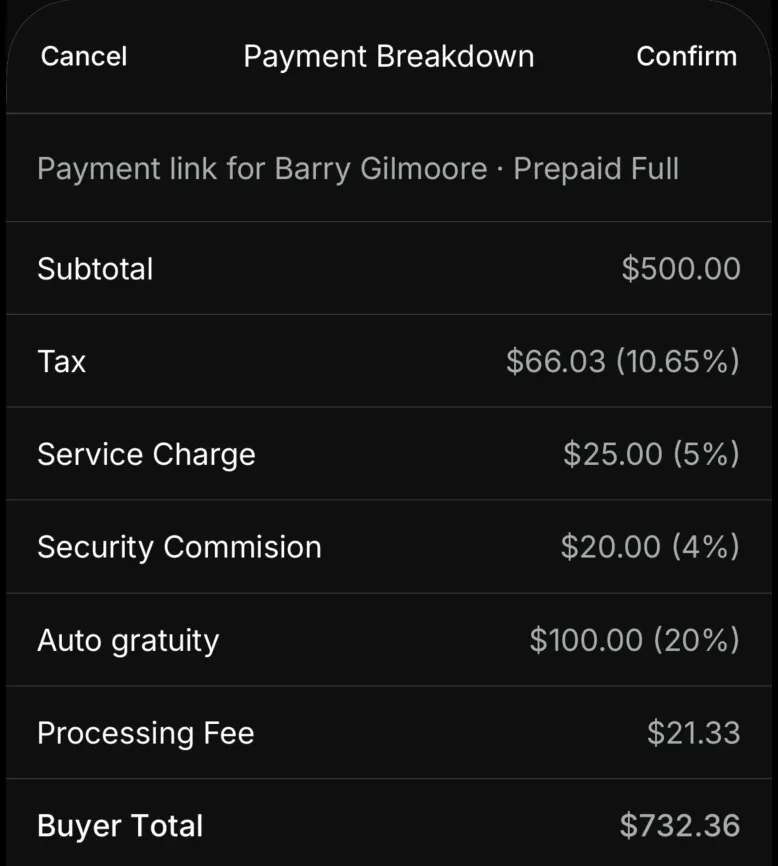
Payment Breakdown lists the subtotal, tax, fees, processing fee, and Buyer Total. Tap Confirm to create the link, or Cancel to go back.
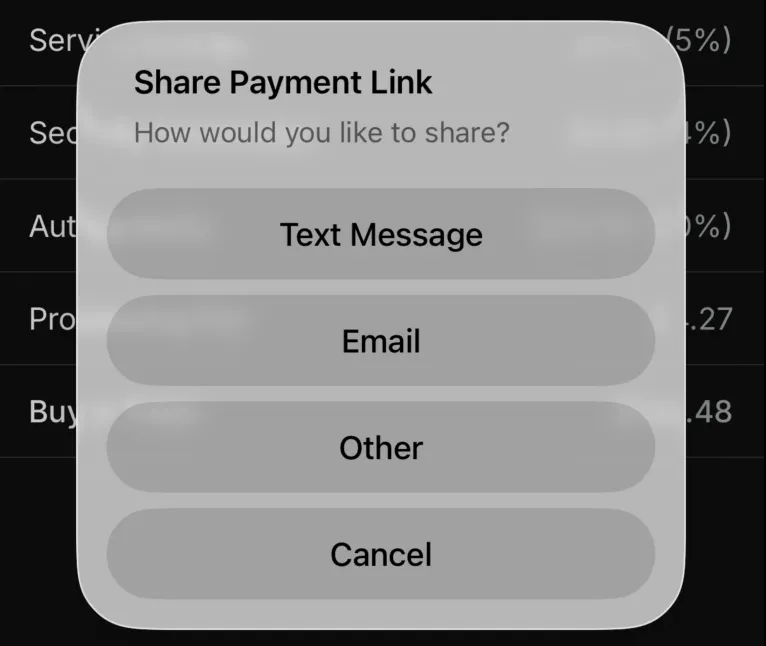
Share Payment Link asks how to send it: Text Message, Email, or Other. Other opens the phone's share sheet.
To send it again later, tap ⋯, then Share Payment.
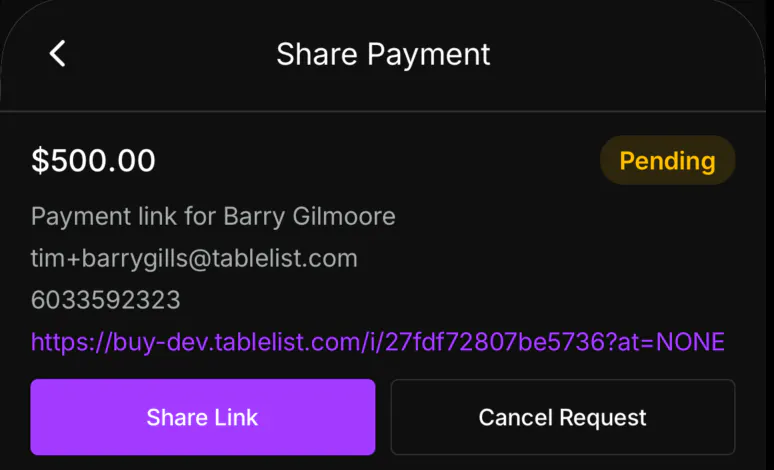
Each link shows the amount, a Pending badge, the name, the guest's email and phone, and the URL. Tap Share Link to send it again, or Cancel Request to stop the guest from paying with that link. A paid link shows Completed.