Use Fast Pass so a guest can check out a table, ticket, or cover from a link or QR code.
Web
Open the sidebar, click Inventory, and pick the date. Stay on Table, Ticket, or Cover.
The Fast Pass column is on the right. Open Actions.
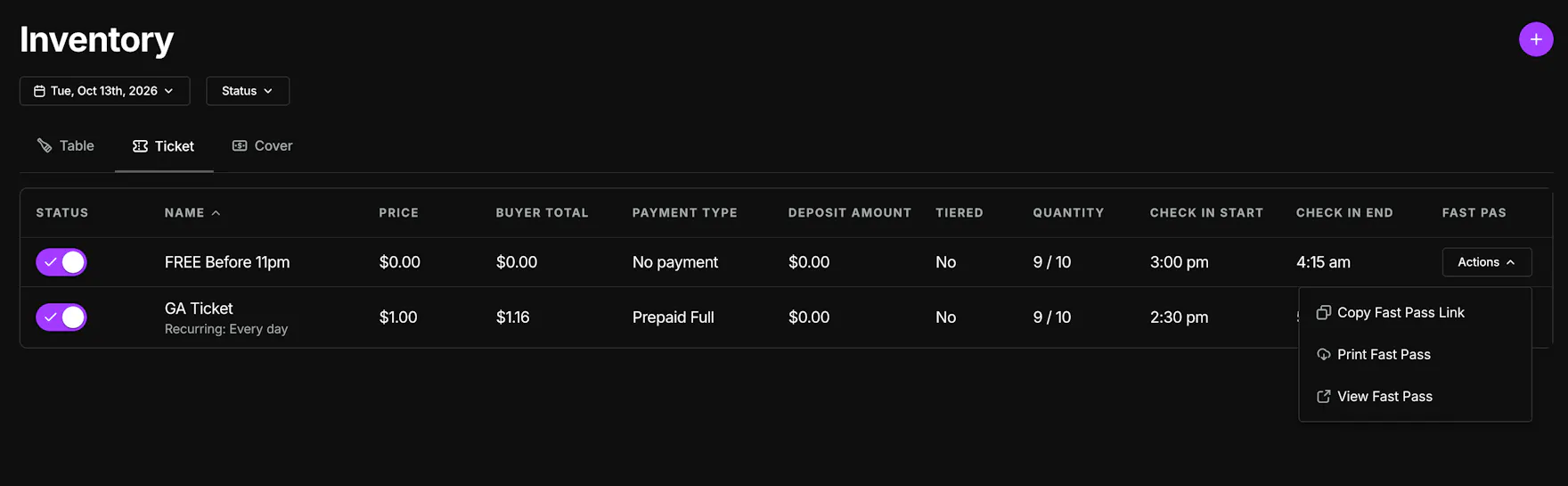
Choose Copy Fast Pass Link, Print Fast Pass, or View Fast Pass.
Select Booked By opens next.
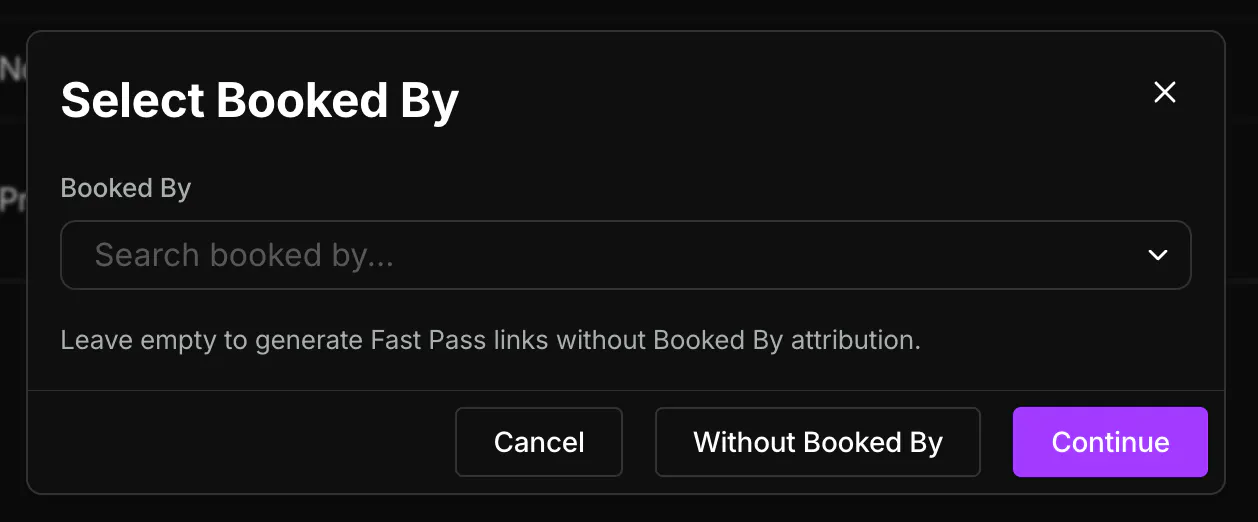
Search for a promoter, staff member, or custom source, then click Continue. The link and printed QR credit that person, and the sale shows up in Sales by Attribution.
Leave Booked By empty, or click Without Booked By, when the link should not credit anyone. Cancel closes the window.
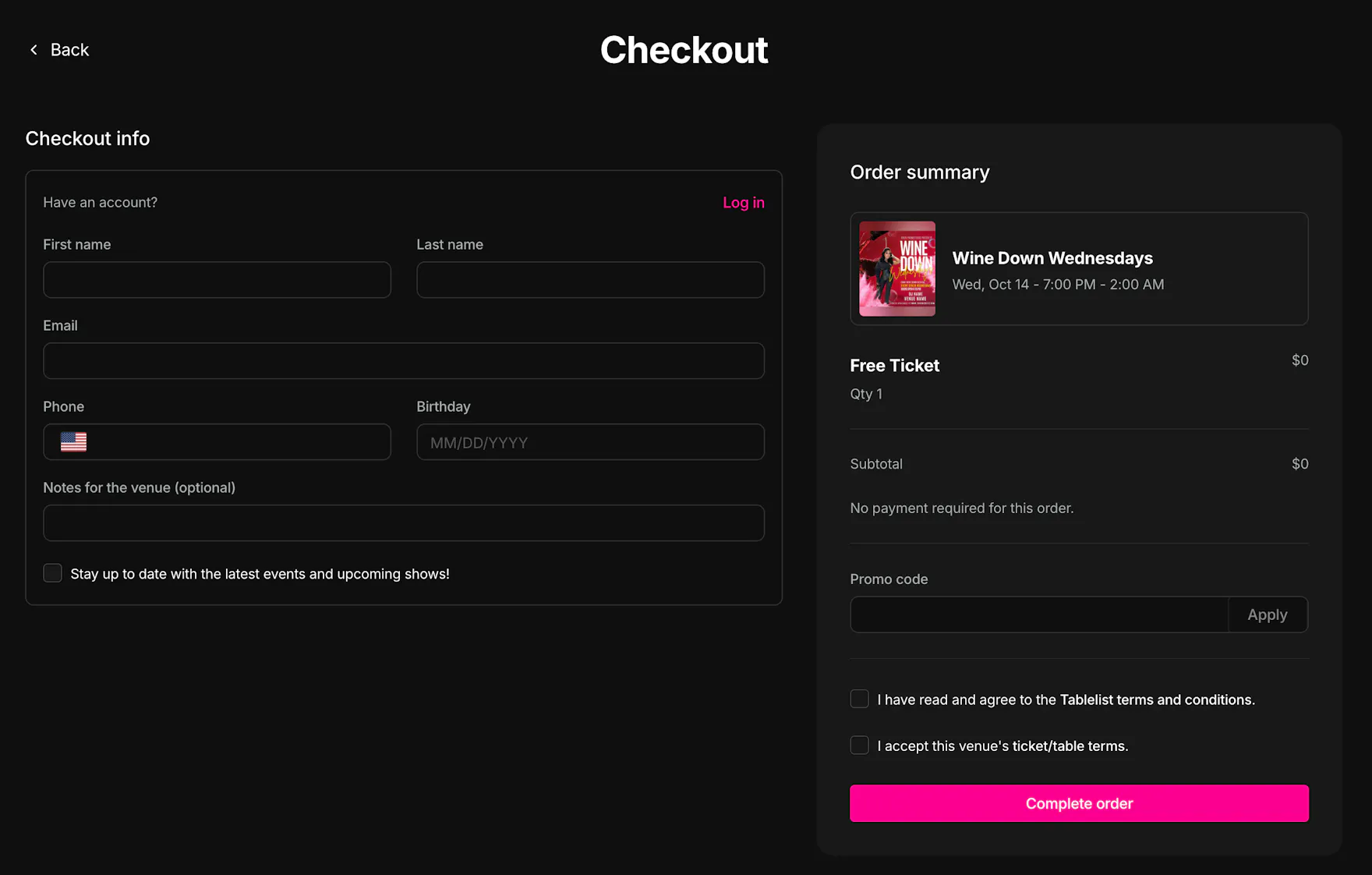
The guest lands on Checkout. They enter their name, email, and phone, then click Complete order.
Ticket and cover purchases show under Admissions. VIP table purchases show under Reservations.
Mobile
Open the Inventory tab and stay on Tables, Tickets, or Covers.
Swipe the item and tap FastPass.
Copy Fast Pass Link copies a link credited to the logged-in account. View Fast Pass opens the same Checkout page the guest sees.
Share the link, or let the guest scan a printed QR in person.