The CRM lives at the organization level. Customers includes guests from every venue in your org — one shared database, not a separate list per venue.
TablelistPro's customer database gives your team a single place to see guest history, spend, tags, and every reservation or ticket tied to a person — so you can deliver better service and run targeted outreach.
Open the sidebar and click Customers.
Customer list
Search, filter, and sort your entire database. Click any row to open that customer's profile.
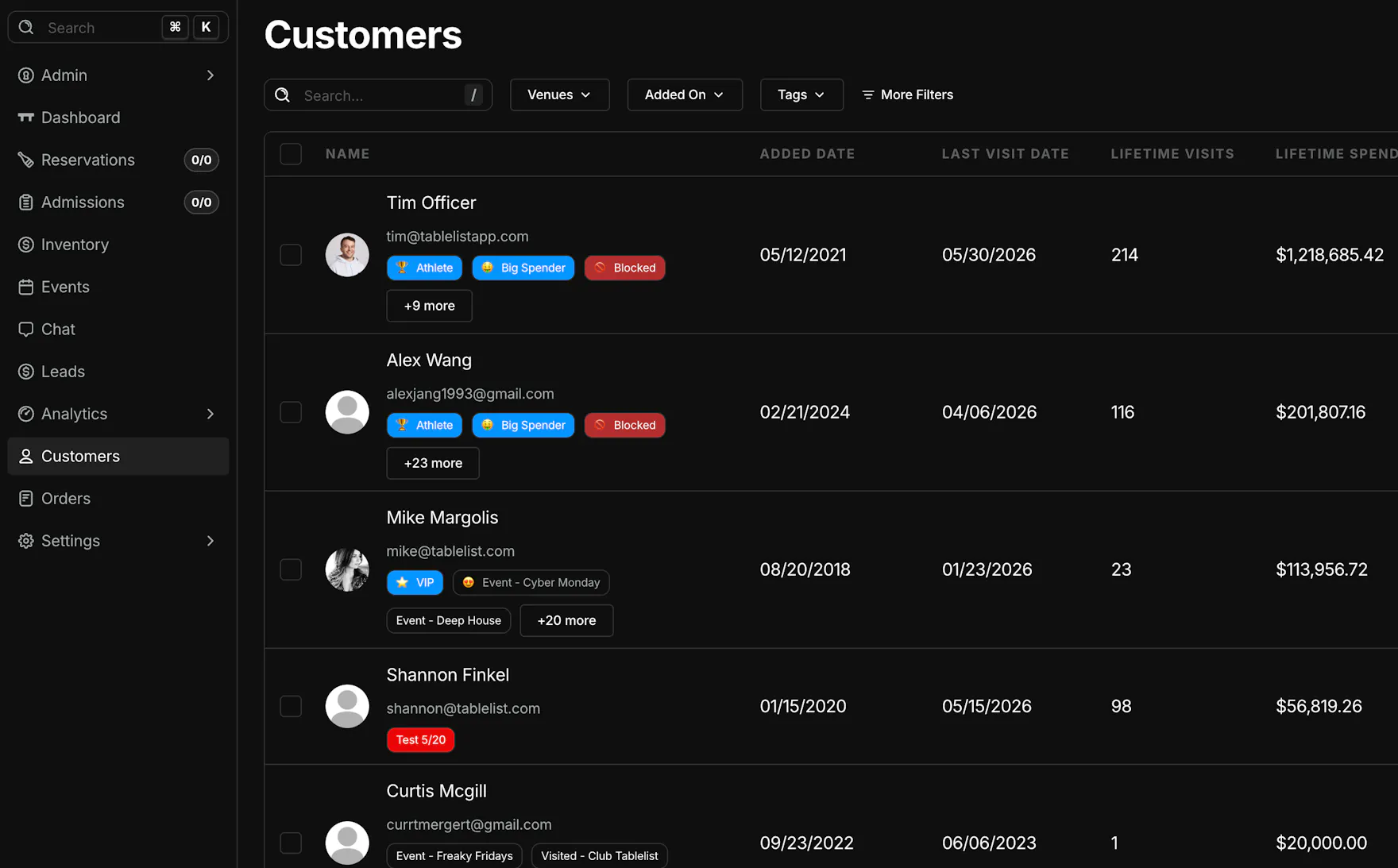
Search — Find customers by name, email, or phone.
Filters
- Venues — Limit results to guests who have visited selected venues.
- Added On — Date range for when the profile was created.
- Tags — Filter by one or more customer tags (VIP, Blocked, fraud bands, custom tags, and more).
- More filters — Spend, Visits, Has Email, Has Phone, Marketing opt-in, Gender, and Birthday Month.
Columns
- Name — Photo, name, email, and tag pills (including a +X more count when many tags apply).
- Phone
- Added Date
- Last Visit Date
- Lifetime Visits
- Lifetime Spend
- Fraud Risk Score
Sort — Click column headers to sort (default is highest lifetime spend).
Row actions
- Checkbox — Select customers for bulk workflows.
- ⋯ menu (top right) — Export a CSV or Merge duplicate profiles.
- + — Create a new customer.
Customer profile
The profile page shows who the guest is, lifetime metrics, and full visit history.
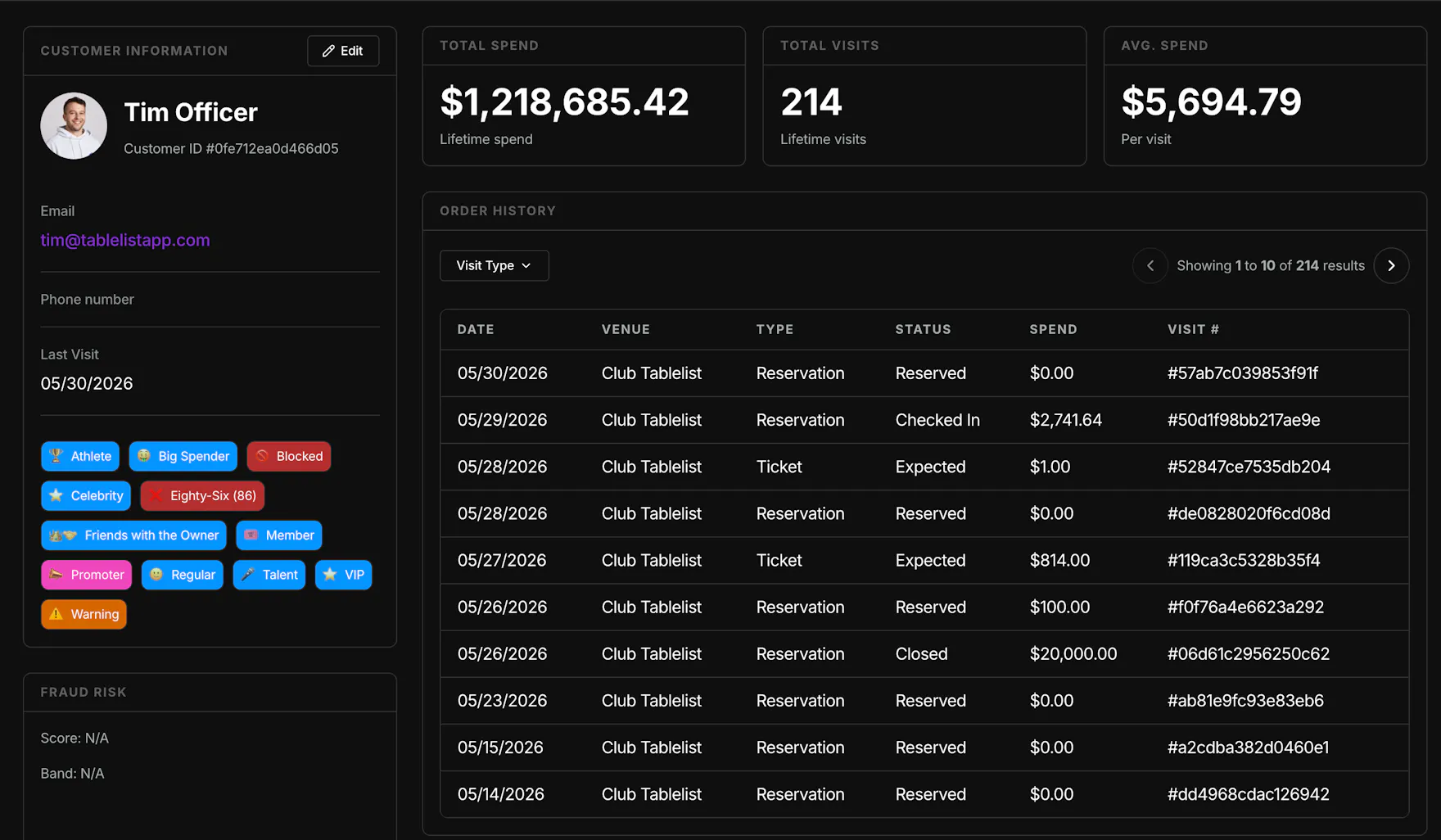
Customer information
- Edit — Update name, contact info, photo, address, notes, tags, marketing opt-in, and other profile fields.
- Customer ID — Internal reference shown under the name.
- Email and Phone number
- Last Visit
- Tags — Click a tag to jump back to the customer list filtered by that tag. See Tagging customers.
Fraud risk
Score and Band (when assigned) surface payment-risk signals. Configure auto-tagging in Fraud protection settings; see Tagging customers for tag behavior.
Marketing
Shows whether the guest has opted in to marketing, including signature capture when collected.
Lifetime metrics
- Total Spend — Lifetime spend across visits and manual receipts.
- Total Visits — Lifetime visit count.
- Avg. Spend — Average spend per visit.
Order history
Every reservation, ticket, and guest-list visit for this customer.
- Visit Type — Filter by reservation, ticket, guest list, or tally.
- Columns — Date, Venue, Type, Status, Spend, Visit #
- Click a row to open the visit in a slide-out panel (see below).
Linked Profiles
Contacts links related CRM profiles — for example when someone books and someone else pays.
TablelistPro creates a CRM profile for each person. Those profiles link together automatically on the booking, so you can see who is connected to whom without merging them into one record.
Common scenario: A guest books a table but a different person pays the deposit or full balance. You'll get two CRM profiles — one for the booker, one for the payer — and Contacts ties them together on that visit.
Contacts tab
| Column | What it shows |
|---|---|
| Name | Linked person's display name |
| Their email on file | |
| Phone | Their phone on file |
Click any row to open that person's full customer profile.
Search — Look up either person by name, email, or phone in Customers. If you search for one or the other, both will come up. Open Contacts on either profile to jump between linked people.
Receipts
Manual spend entries live in the Receipts section on this page. For how to add or edit them, see Adding manual receipts.
Open a reservation from CRM
Click any row in Order history to open the visit details without leaving the customer profile.
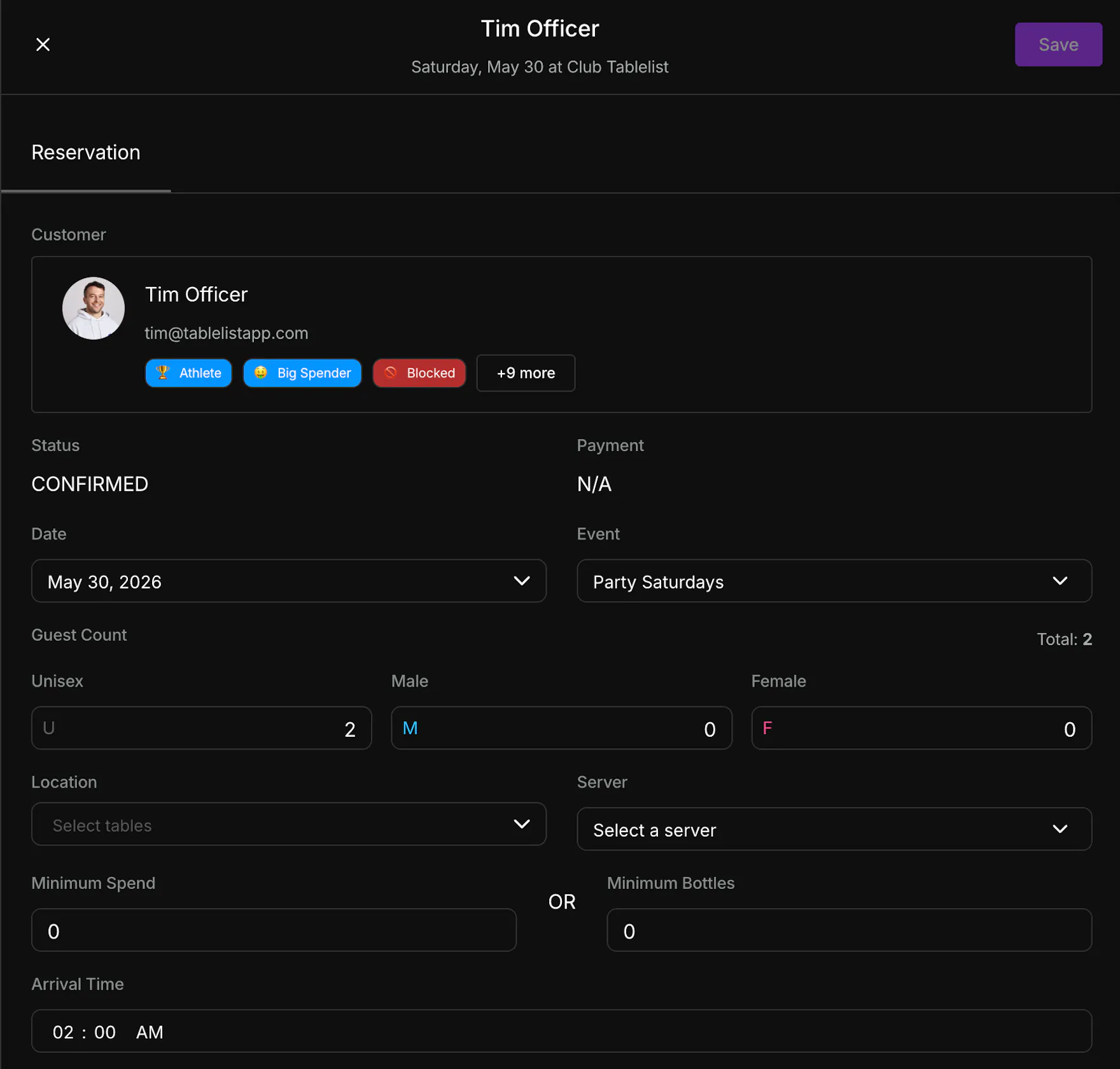
The slide-out shows the guest, status, event, date, party size, table assignment, server, minimums, arrival time, and other reservation fields your permissions allow. Click Save after changes.
Use the customer card and tags at the top for quick context (VIP, Blocked, Big Spender, etc.).