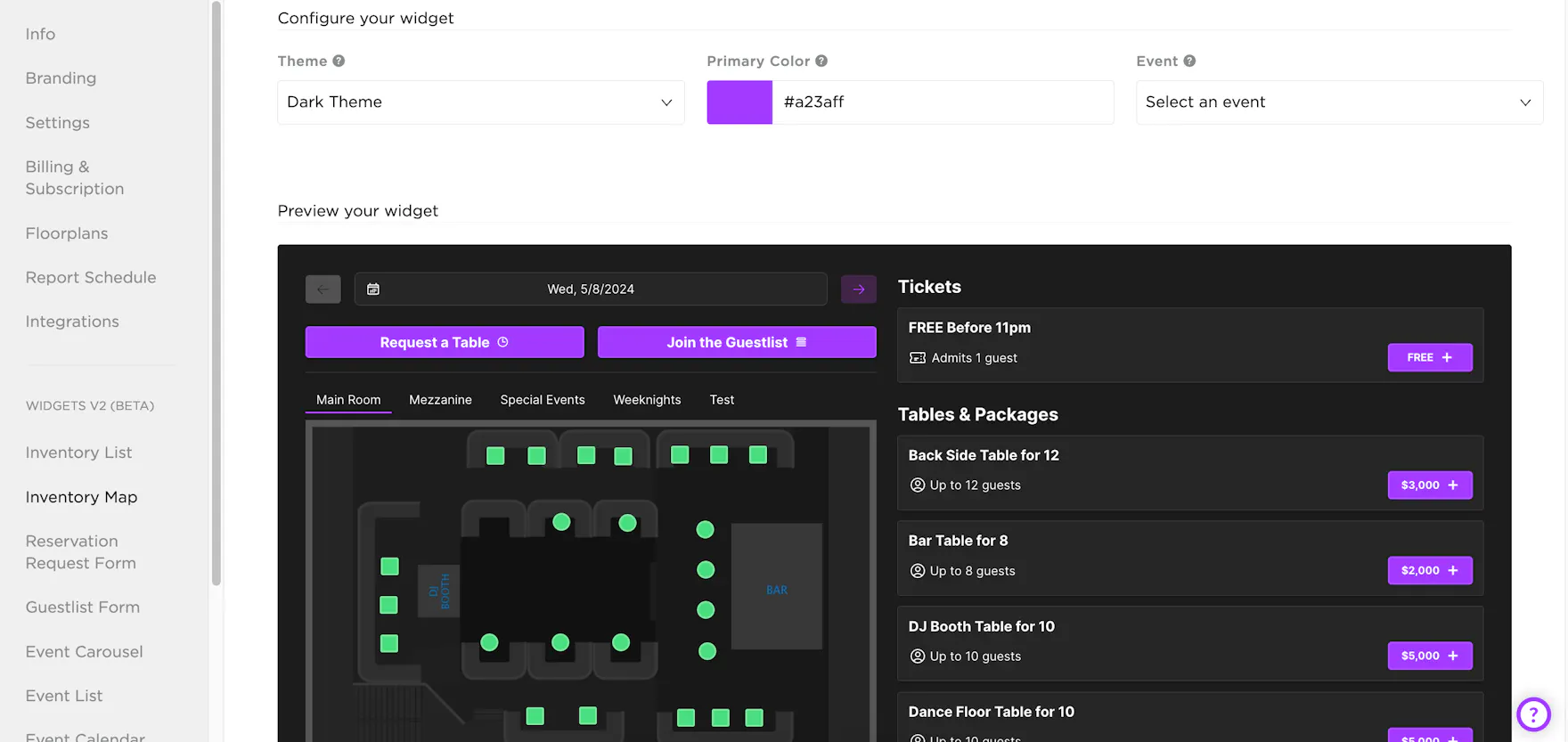
TablelistPro's instant booking widgets let you list events, sell tickets and tables, and accept reservation and guest list requests -- all directly on your own website, in real time.
To open the widget builder, open the sidebar, click Settings, then Developers, then Widgets.
When you paste embed code or call the API, you'll often need your organization id and venue id. Copy them from Settings → Developers → API Reference -- see Developers for context.
Pick your theme (light or dark) and primary color (for buttons and links), and you'll see a live preview. You can also tailor the widget to a specific event or date.
To embed it on your site, copy the code under Get your widget code. You'll need to include the TablelistPro JavaScript SDK on your site for it to work.
In this section
- Inventory ListDisplay inventory in a list layout
- Inventory MapDisplay inventory on a clickable map
- MapShow a venue map widget
- Cart ButtonOpen and link to a cart flow
- Marketing Opt-InCollect marketing opt-ins
- Reservation FormCapture reservation requests
- Guest List FormCapture guest list signups
- Event ListDisplay events in list format
- Event CalendarDisplay events in a calendar
- Event GridDisplay events in a grid
- Event CarouselDisplay events in a carousel
- Event PanelDisplay event content in panel layout
For implementation patterns (default embed and headless cart), see JavaScript SDK.
To share a phone-scannable link, use Share your widget and click Print QR code. Guests scan it with their phone's camera to open that widget.
That printed code does not credit a staff member, promoter, or custom source — those bookings show as None in Sales by Attribution. A widget embedded on your site still shows as Widget. The printed QR is not a Tablelist website sale.
Sharing QRs on Settings → Team → Attributions open the venue page (not this widget) and credit that source. To credit a channel on a widget URL you print yourself, add that source's tracking ID from Sharing to the widget URL first. See Managing attributions.