Reservation tags flag context on bookings — VIP holds, comp approvals, fraud bands, and venue-specific notes your door and floor teams need at a glance.
Open the sidebar, click Settings, then Reservation tags.
Tag list
Search and filter your organization's tag library. Click a row to edit; use the purple + to create a custom tag.
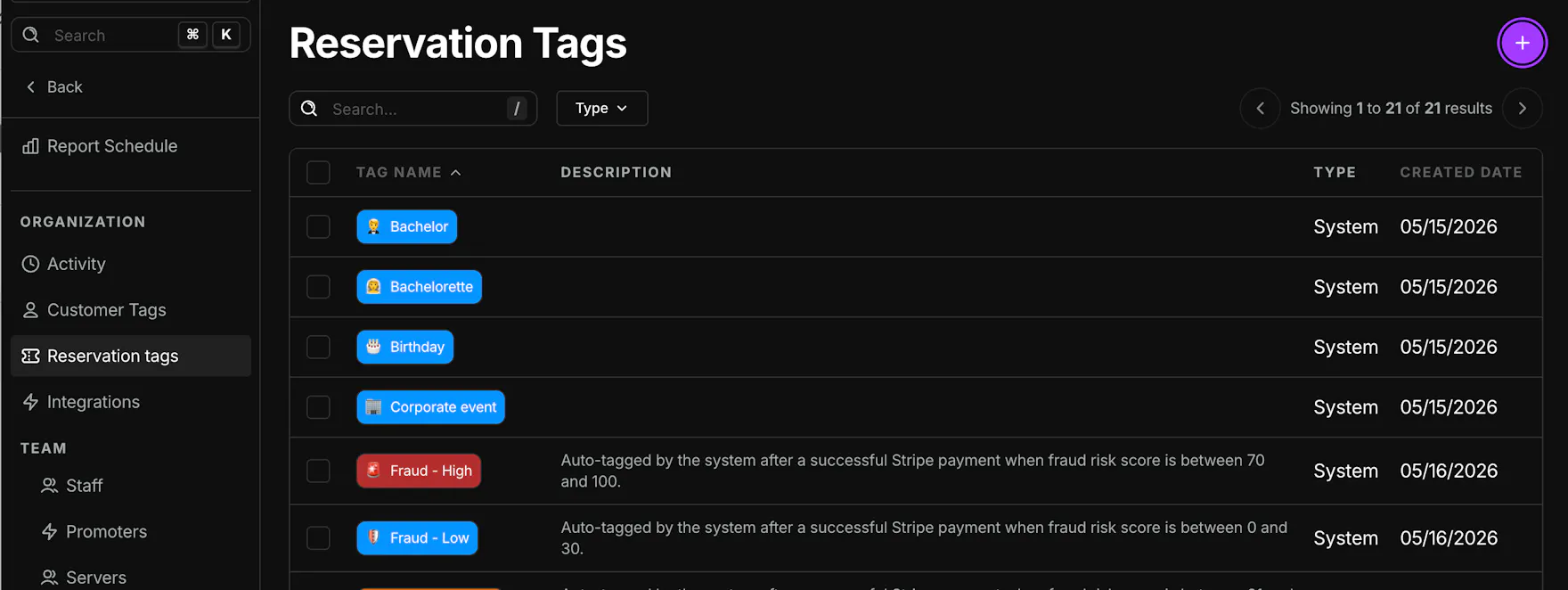
Search — Find tags by name.
Type — Filter System (reserved by TablelistPro) or Custom (created by your team).
Columns
- Tag Name — Label shown on reservations.
- Description — For system tags, explains when TablelistPro applies the tag automatically.
- Type — System or Custom.
- Created Date — When the tag was added.
Create or edit a custom tag
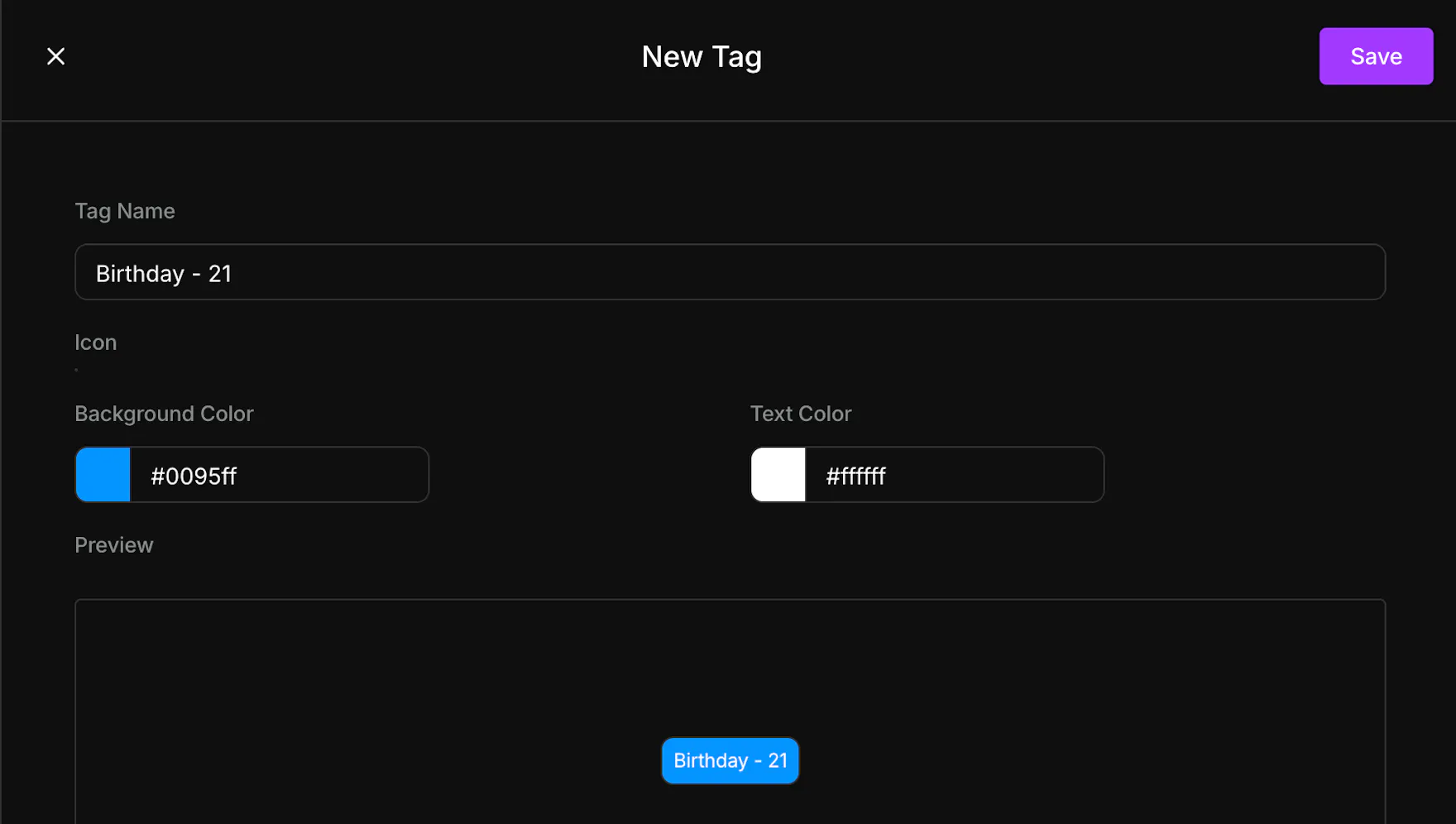
- Click + or an existing custom tag row.
- In the slide-out, set Tag name, Background color, Text color, and optional Icon.
- Click Save.
Custom tag names must be unique and cannot use reserved system names.
System tags — TablelistPro owns these (including fraud bands). You can review them in the list; editing is limited compared to custom tags.
Fraud system tags
When Stripe payment sync runs, TablelistPro can auto-apply reservation tags by risk band:
- Fraud - Low (score 0–30)
- Fraud - Medium (score 31–69)
- Fraud - High (score 70–100)
Configure which bands auto-tag reservations in Fraud protection settings (Settings → Fraud protection). Tags surface on the reservation so hosts and managers spot risk before check-in, move requests, and upsells.
Apply tags on reservations
After tags exist here, staff add or remove them on individual reservations, tickets, and guest-list entries from Reservations or Admissions. See Reservation Tags for day-of workflows.
Related articles
- Reservation Tags — apply tags on bookings
- Customers — customer tags (separate from reservation tags)
- Reservations settings — confirmation emails and reservation defaults
- Fraud protection settings — auto-tag customers and reservations by risk band