Reservation requests land in Leads. Approve, deny, or mark one in progress so the floor knows what's still open.
Web
Open the sidebar and click Leads.
Search, or filter by date range, attribution, and status (Pending, In Progress, Approved, or Denied). Sort by name, date submitted, event date, guest count, arrival time, attribution, or notes.
Open a lead. Deny, In Progress, and Approve sit at the bottom. You can also update attribution, the minimum, and notes, generate a payment link, or assign a VIP table.
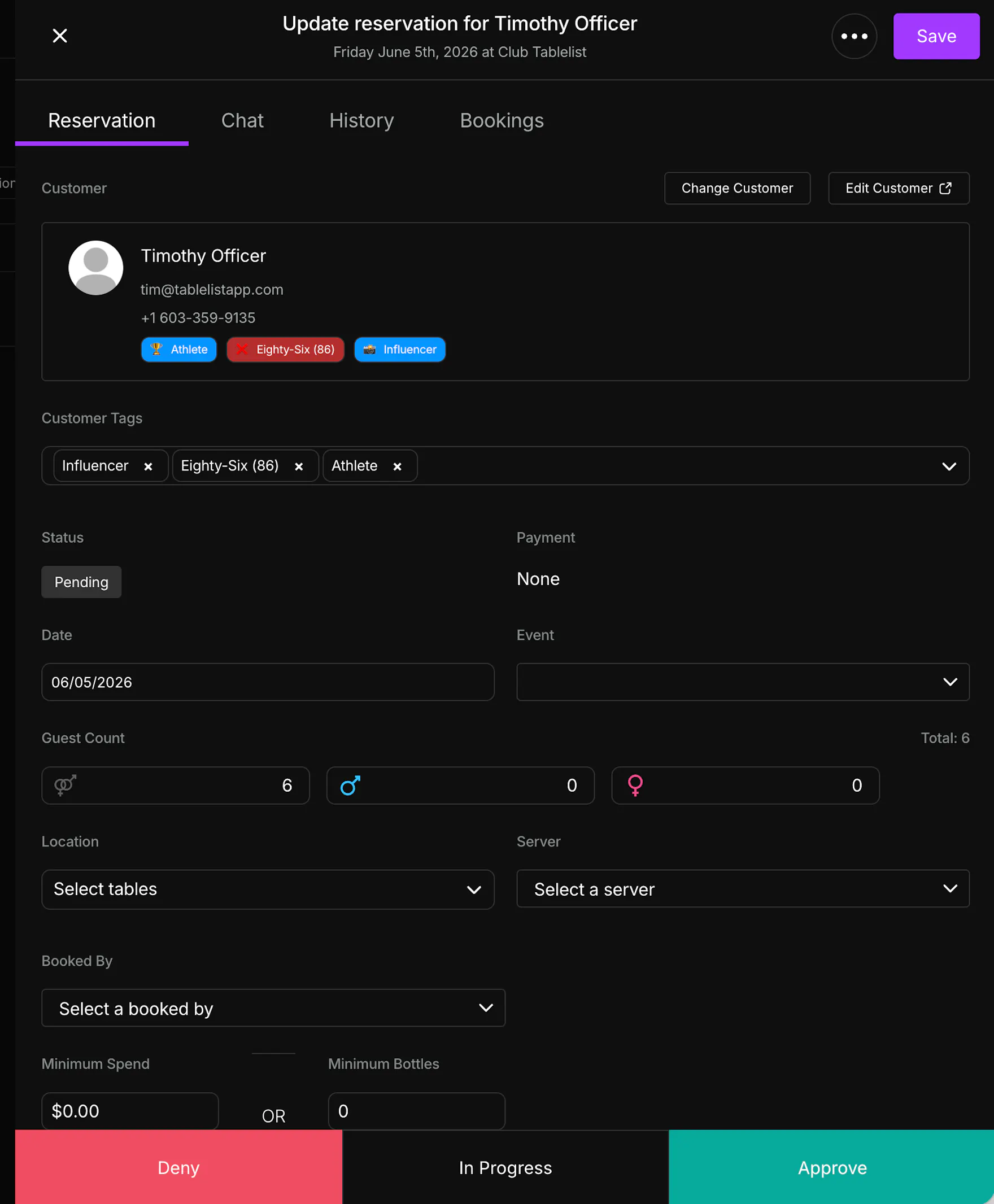
In Progress means someone on your team is working the lead. It stays on the list. Approve confirms the request and Deny turns it down. Both leave the default list. Filter by Approved or Denied to see them later.
Mobile
Open the sidebar and tap Leads.
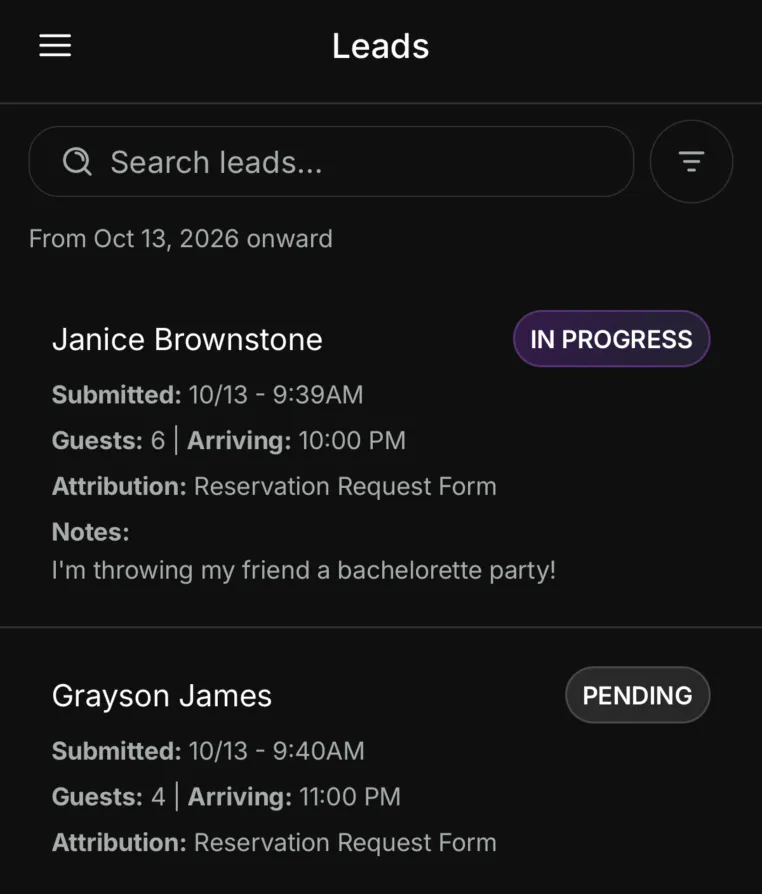
Search by name, or use the filter for date, status, and attribution. With no end date, the list runs from today onward.
Each lead shows the guest, a status badge, when it was submitted, the guest count, arrival time, attribution, and notes. Pending is waiting. In Progress means someone on the team is working it.
Open a lead. Deny, In Progress, and Approve sit at the bottom.
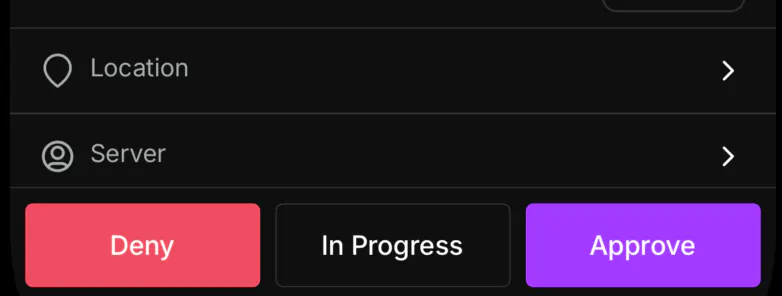
In Progress keeps the lead on the list. Approve confirms it and Deny turns it down. Both leave the default list. Use the filter to see Approved or Denied leads later.
Swipe a Pending or In Progress lead to reach the same three actions.