Close a checked-in table when the party is done. You can open it again later.
Web
Open the sidebar, click Reservations, and open the reservation.
Click Close Out. TablelistPro asks if you want to add final receipts. Yes opens the Payment tab. No closes the reservation.
To open it again, click ⋯, then Un-Close.
Mobile
Open the Reservations tab and open a checked-in reservation. Close Out sits next to Checked In.
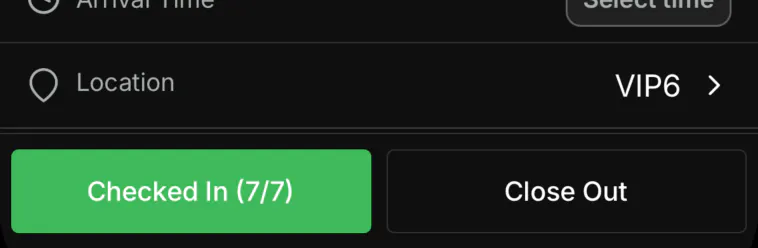
Tap Close Out. TablelistPro asks if you want to enter the total spend. Yes opens receipts. Later closes the reservation without a receipt.
Tap Add receipt. The form is titled Add Receipt.
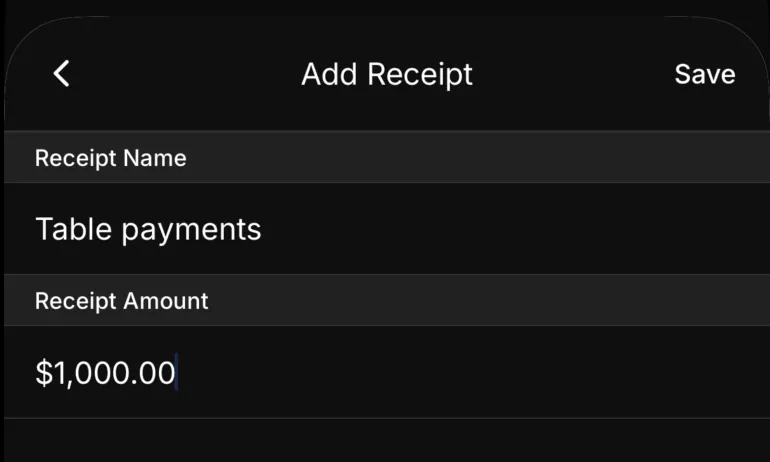
Set Receipt Name and Receipt Amount, then tap Save.
The list shows a Closed badge.
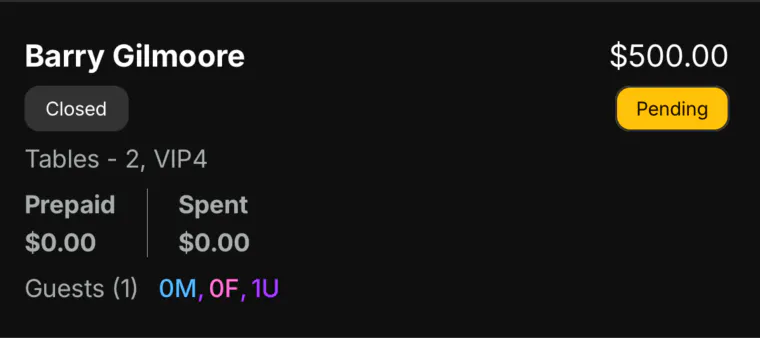
To open it again, open the reservation, tap ⋯, then Un-Close. It goes back to Checked In.