Attributions (attribution sources) are custom channels you use to track where bookings come from — for example Instagram, a hotel concierge, or a partner brand. They are different from the Attribution field on a single reservation, which records who booked that guest.
Staff and promoters also get their own tracking links automatically. Custom sources are created here under Settings → Team → Attributions.
Open the sidebar, click Settings, then Team, then Attributions.
NOTE: You need permission to add or update staff to manage attributions.
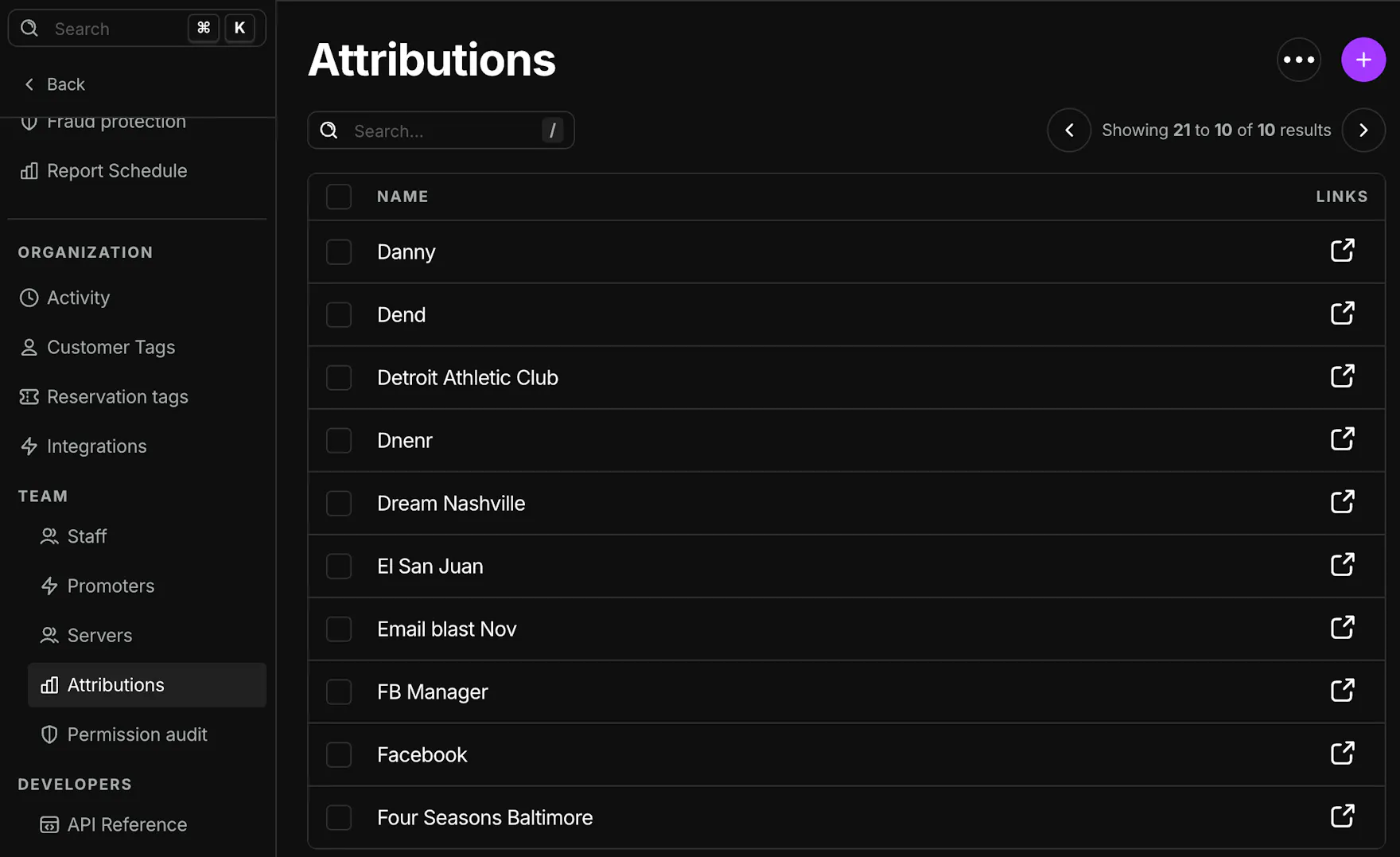
Attributions list
Header
- Title Attributions
- Round + — Add a new source
- ⋯ menu:
- Export — Download a booked-by report (respects the current search filter)
- Merge — Enabled when two or more rows are checked; combine duplicate sources
Search — Filter the table by source name.
Pagination — Move through pages of sources (10 per page).
Table
| Column | What it shows |
|---|---|
| Checkbox | Select rows for Merge |
| Name | Source label |
| Sharing | External-link icon — opens the Sharing slide-out (does not open the edit panel) |
Click a row (not the Sharing icon) to add or edit that source.
Add or edit a source
Click + or click a row.
Slide-out
- New: Add Attribution
- Existing: Update {name}
- Name (required)
- Save
- ⋯ → Delete on existing sources (permanent; confirm in the modal)
After you create a source, it can appear on event and venue tracking link pages alongside staff and promoter links.
Sharing
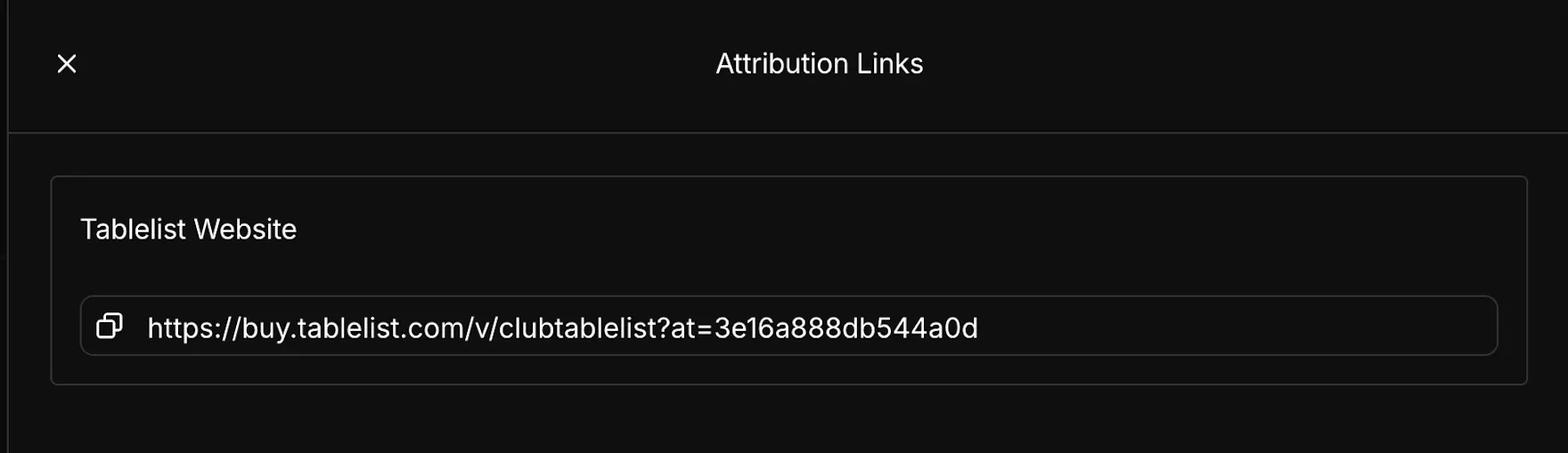
- In the Sharing column, click the external-link icon for a source.
- The Sharing slide-out opens.
- Under Tablelist Website, copy the venue tracking URL (copy button on the field).
- To print a phone-scannable version of that same URL, click Print QR code.
The copy field and the printed QR code use the same link. The URL includes this source's ID, so bookings from it are credited to this attribution in Sales by Attribution.
Event-specific URLs are on the Events page per event — see Event tracking links.
Printed QR codes and attribution
Not every printed QR code credits a source.
| Print from… | What guests open | Attribution |
|---|---|---|
| Sharing on this page (or on Promoters) | Venue page with this source's tracking ID | This source |
| Event Print QR code | That event's buy page | None |
| Settings → Details → Share your venue | Venue buy page | None |
| Settings → Developers → Widgets → Share your widget | That widget | None |
Staff and promoter tracking links still credit the person whose link you share.
If you want a posted QR to credit Instagram, a promoter, or a staff member, print from Sharing (or share their tracking link). Don't use the generic event, venue, or widget Print QR code buttons for that.
You can add a tracking ID to a generic event, venue, or widget URL if you generate your own QR. Use the same ID from that source's Sharing or tracking link. If the URL already has a tracking ID, the first one is the one that counts.
Merge sources
- Check two or more sources in the table.
- Open the header ⋯ menu → Merge.
- Complete the merge flow in the slide-out (pick the surviving name, confirm).
- Historical data rolls up to the merged source.
Use merge when duplicate names were created by mistake.
Export
- Optionally narrow the list with Search.
- ⋯ → Export.
- Finish the export modal — you receive a booked-by dump for your organization.
Related articles
- Sales by Attribution — reservation and admission performance by source (Analytics → Attribution)
- Custom tracking links — short pointer from Events
- Event tracking links
- Venue tracking links
- Viewing events — print an event QR code
- Venue Details — print a venue QR code
- Adding widgets — print a widget QR code
- Team